
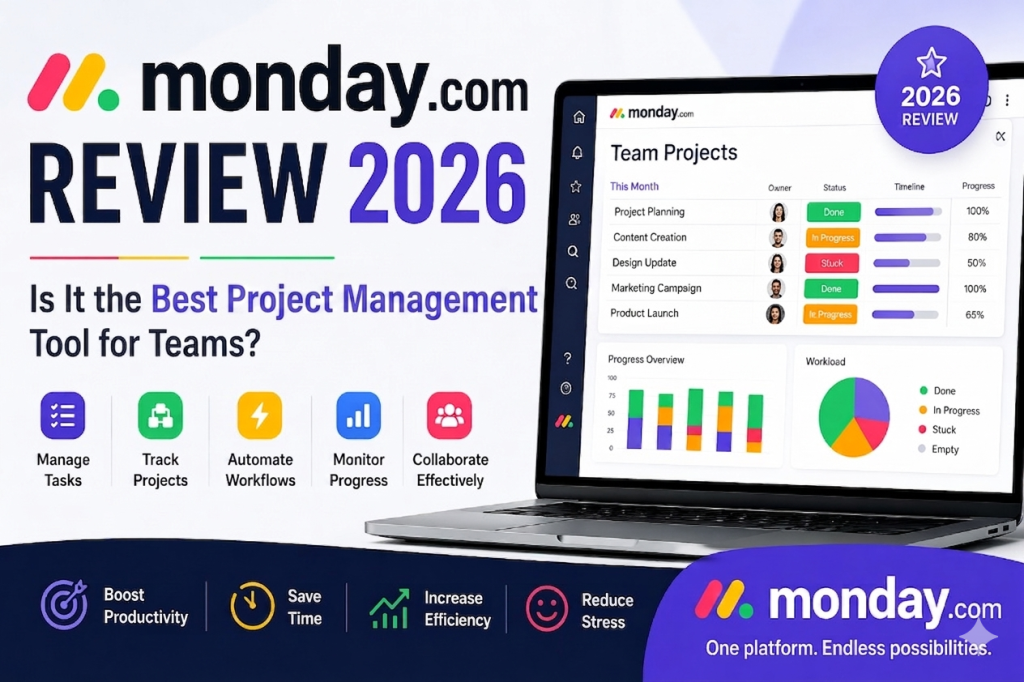
Managing projects today feels harder than ever. Teams are scattered across different locations, tasks pile up faster than they can be completed, and communication often gets lost in emails, chats, and spreadsheets. If you’ve ever felt like your workflow is messy, slow, or completely unorganized, you’re not alone.
This is exactly the problem tools like monday.com are designed to solve.
In this monday.com review, we’ll take a deep, honest look at what the platform actually offers, how it works in real life, and whether it truly lives up to the hype in 2026. Unlike surface-level reviews, this breakdown is based on practical use cases, real workflow scenarios, and a clear understanding of what teams actually need not just marketing claims.
monday.com positions itself as a “Work Operating System,” meaning it’s more than just a task manager. It aims to become the central hub where teams plan, track, automate, and deliver all their work in one place.
But does it really deliver on that promise? And more importantly, is it worth your time and money?
Let’s break it down.
What is monday.com?
monday.com is a cloud-based work management platform designed to help individuals and teams organize projects, workflows, and daily tasks in a highly visual and customizable way.
At its core, it replaces messy spreadsheets, scattered to-do lists, and disconnected communication tools with a single system that brings everything together.
It is widely used by:
- Small businesses managing daily operations
- Marketing agencies handling multiple clients
- Remote teams coordinating across time zones
- Project managers tracking deadlines and progress
- Freelancers organizing personal workflows
What makes monday.com stand out is its flexibility. Instead of forcing users into a rigid system, it allows them to build their own workflows using boards, columns, automation rules, and dashboards.
In simple terms, it adapts to your business not the other way around.
Key Features of monday.com
In this section of the monday.com review, we’ll explore the core features that make it a popular productivity tool.
1. Task Management
Task management is the foundation of monday.com. You can create tasks, assign them to team members, set deadlines, and track progress visually.
Each task lives inside a “board,” and you can customize it with:
- Status labels (In Progress, Done, Stuck)
- Priority levels
- Due dates
- Owners
This makes it easy to see what’s happening at a glance without digging through messages or emails.
2. Project Tracking
One of monday.com’s strongest features is project tracking. You can view your projects in multiple formats:
- Kanban boards
- Gantt charts
- Timeline views
- Calendar views
This flexibility is extremely useful for teams that manage different types of projects simultaneously.
For example, a marketing team can track campaign progress while a development team monitors sprint cycles all within the same platform.
3. Automation
Automation is where monday.com becomes powerful.
Instead of manually updating tasks, you can set rules like:
- “When a task is marked done, notify the manager”
- “When due date is approaching, send a reminder”
- “When status changes, move item to next stage”
This reduces repetitive work and saves hours every week, especially for growing teams.
4. Dashboards
Dashboards turn raw data into visual insights.
You can track:
- Project progress
- Team workload
- Deadlines
- Budget tracking
- Performance metrics
This is especially useful for managers who want a bird’s-eye view of everything happening in their organization.
5. Collaboration Tools
Communication is built directly into tasks.
Team members can:
- Comment on tasks
- Tag colleagues
- Share files
- Get real-time updates
This eliminates the need for constant switching between email, Slack, and other tools.
How monday.com Works (Step-by-Step)
To understand this monday.com review properly, let’s walk through how it actually works in practice.
Step 1: Onboarding
When you first sign up, monday.com asks what you want to use it for:
- Project management
- CRM
- Marketing workflows
- Personal productivity
Based on your choice, it suggests ready-made templates.
Step 2: Creating Boards
Boards are the core structure of monday.com.
Think of them as digital whiteboards where your entire workflow lives. You can:
- Add tasks
- Organize columns
- Customize statuses
- Group items by category
This makes it extremely flexible for different industries.
Step 3: Managing Workflows
Once your board is set up, you start managing your workflow:
- Assign tasks to team members
- Track progress in real time
- Automate repetitive actions
- Update statuses as work progresses
Everything stays centralized, which reduces confusion and improves productivity.
Pros and Cons
No honest monday.com review is complete without both sides.
Pros
- Highly customizable workflows
- Excellent visual interface
- Powerful automation features
- Great for team collaboration
- Works for multiple industries
- Scales well with growing teams
Cons
- Can feel overwhelming for beginners
- Pricing increases with advanced features
- Requires setup time to unlock full potential
- Some features are locked in higher-tier plans
Pricing Breakdown
monday.com offers several pricing tiers depending on your needs:
- Basic Plan – Best for individuals or very small teams
- Standard Plan – Adds collaboration and timeline features
- Pro Plan – Includes automation, dashboards, and advanced reporting
- Enterprise Plan – Designed for large organizations with security and scaling needs
While it is not the cheapest tool on the market, the value comes from its flexibility and all-in-one functionality.
Who Should Use monday.com?
This part of the monday.com review is important because not everyone will benefit equally.
Small Businesses
Perfect for organizing daily operations, tasks, and team communication.
Agencies
Great for managing multiple clients and campaigns in one place.
Remote Teams
Ideal for distributed teams needing centralized communication and tracking.
Freelancers
Useful for managing personal projects and deadlines efficiently.
monday.com vs Competitors
Let’s compare monday.com with other popular tools.
vs Trello
Trello is simpler and great for beginners, but lacks advanced automation and reporting.
vs Asana
Asana offers strong task management, but monday.com provides more customization and visual flexibility.
vs ClickUp
ClickUp is more feature-heavy, but monday.com is often easier to use and more visually intuitive.
Overall, monday.com sits in the middle: powerful but still user-friendly.
Real Use Case Examples
Marketing Team Example
A marketing team uses monday.com to plan campaigns, assign content tasks, track deadlines, and automate approval workflows. Instead of scattered messages, everything is centralized.
Project Manager Example
A project manager tracks multiple projects using dashboards and timelines. They can instantly see delays, workload distribution, and project status without asking the team.
Freelancer Workflow Example
A freelancer uses monday.com to manage client work, invoices, deadlines, and content planning—all in one board, reducing mental overload.
Final Verdict
So, is monday.com worth it?
After this detailed monday.com review, the answer depends on your needs.
If you want a simple to-do list app, it might feel like too much. But if you need a powerful, scalable system to manage projects, teams, and workflows in one place, it becomes extremely valuable.
It shines most when:
- You manage multiple projects
- You work with a team
- You need automation and structure
- You want better visibility and control
However, it may not be ideal if you are looking for something ultra-simple with zero learning curve.
In short, monday.com is not just a task manager—it’s a full work management system designed for productivity, structure, and growth.